A speed test measures your connection at a specific moment, from a specific device, to a specific server. Most people test on Wi-Fi from a phone in another room and wonder why results don't match their plan. Follow this six-step checklist for results you can actually trust — then run your test on SpeedCheckTest.
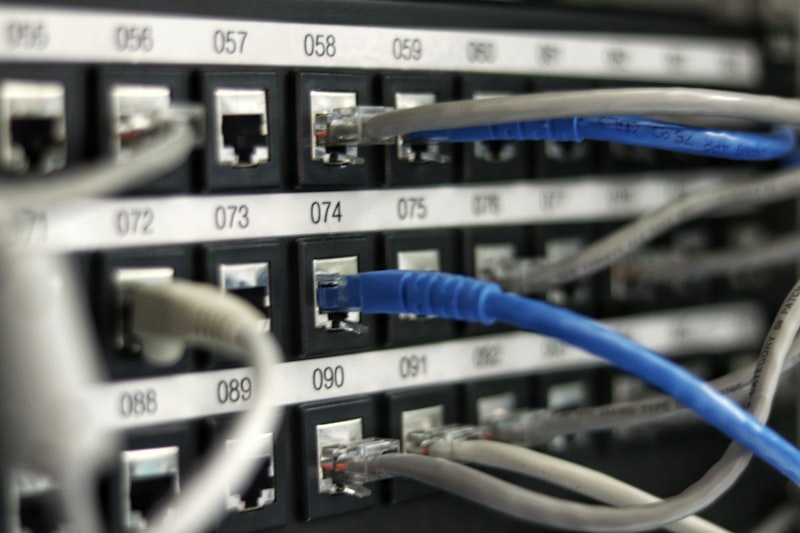
Step 1 — Use Ethernet, not Wi-Fi
Wi-Fi introduces signal loss, interference, and distance degradation. Plug directly into your router or modem with an Ethernet cable (Cat5e or better, available for under $5). On Wi-Fi, you're measuring Wi-Fi performance plus broadband — not broadband alone. This is the single most impactful change you can make.
Step 2 — Close all other apps and browser tabs
Background applications consume bandwidth silently: cloud sync (Dropbox, OneDrive, iCloud), software updates, streaming services, and browser extensions all compete during the test window. Close everything non-essential before clicking GO.
Step 3 — Disconnect other devices
Every device actively communicating shares your bandwidth. Smart TVs downloading updates, phones syncing, game consoles — all reduce available bandwidth. For a true baseline, disable Wi-Fi on all other devices in your home before testing.
Step 4 — Use the closest server
Speed test results to distant servers are lower because latency accumulates. SpeedCheckTest automatically selects the nearest server based on your detected location. For comparison against your ISP plan, always use the closest available server. Our methodology is explained in detail on the about page.
Step 5 — Run multiple tests
A single result can be misleading due to momentary network fluctuations. Run at least 3 tests and use the average as your reference. SpeedCheckTest saves your last 8 tests automatically — you can use this history to identify patterns rather than over-reacting to a single outlier.
Step 6 — Test at different times of day
Evening peak hours (7–11 PM) typically show lower speeds due to ISP network congestion. Test in the morning for your maximum possible speed, and in the evening to know your real-world performance when you're most likely to use the internet heavily.
How to interpret your results
| Result vs plan | Meaning | Action |
|---|---|---|
| > 90% of plan | Excellent | Connection performing as expected |
| 70–90% of plan | Normal | Minor loss is expected — no action needed |
| 50–70% of plan | Below average | Check Wi-Fi, background processes, peak hours |
| 30–50% of plan | Poor | Investigate router, cables, or ISP issue |
| < 30% of plan | Very poor | Contact your ISP with documented test results |
Documenting a speed issue for your ISP
To make a complaint, document at least 5 tests over 3 days at different times. Note the time, result, and whether you used Ethernet or Wi-Fi. SpeedCheckTest's history panel makes this straightforward — screenshot the results as evidence when contacting your provider. For more detail on what causes low speeds, see our guide on why internet is slow.
Sources: OFCOM Broadband Performance Research · FCC Measuring Broadband America · BEREC Broadband Speed Measurement Guidelines